
Mobile Guides
How to Save and Play MP3 Files on an iPhone Without iTunes
Where Safari puts a downloaded track, how to find it in Files and which free apps actually play a local music folder.
7 min read · Published 18 September 2026 · Updated 18 September 2026
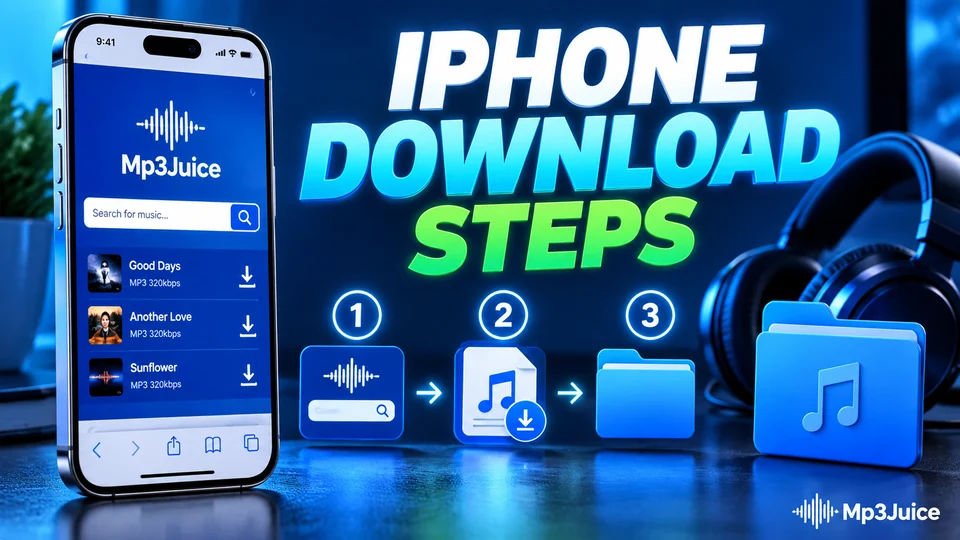
iPhones have been able to download files for years, but the file does not land in the Music app. It lands in Files, which is a separate place with its own rules. Once you know where to look, playing a downloaded track is straightforward.
Why the song is not in Music
Apple keeps the Music app tied to your library and your Apple Music subscription. A random MP3 from the web is just a file, so iOS treats it like a PDF or a photo attachment. That is not a bug. It is how the sandbox works. Files is the app that holds it.
Saving a track in Safari
- Open Safari and go to the search page.
- Search for the track, open the result and choose the download option.
- When Safari asks whether to download the file, tap Download.
- Look at the address bar. A small circle with an arrow shows the progress. When it fills, the file is complete.
If the download starts in a new tab and nothing seems to happen, open the Downloads list from the same arrow icon. Safari keeps recent files there even after you close the tab.
Finding the file
- Open the Files app.
- Tap Browse at the bottom of the screen.
- Choose On My iPhone, then Downloads.
If you use iCloud Drive, the file may be in iCloud Drive, then Downloads. Both locations work. The difference is whether the file is stored on the phone or synced to your account.
Apps that play local files
The Files app can preview audio, but it is not a music player. It lacks a proper queue, lock screen controls and folder based libraries. A free player solves that.
| App | Why use it | How to open your folder |
|---|---|---|
| VLC for Mobile | Plays almost any format, supports background audio and has no ads | Open VLC, go to Network, then Local Files, or share a file from Files into VLC |
| Documents by Readdle | Built in file browser with a simple music player | Open the Downloads folder from the app and tap a track |
| Foobar2000 mobile | Lightweight player for people who care about tags and folders | Add the Files folder as a music directory |
Make one folder for offline audio
Downloads scattered across iCloud and local storage are hard to manage. Create a folder called Offline Music inside Files, then move the tracks you want to keep into it. Point your player at that folder once. New files can be moved in after each download, and the old ones stay together.
To move a file, long press it, choose Move, then pick the folder. To move several files, tap Select first. The same gesture works for deleting a file you no longer need.
What to expect
- A downloaded file uses your storage until you delete it. A one hour mix can be dozens of megabytes.
- iCloud Drive may upload the file when you are on Wi-Fi. If you want it only on the phone, turn off iCloud sync for that folder.
- Background playback depends on the player. VLC and Documents both support it. The Files preview may stop when you leave the app.
- iOS updates rarely move the Downloads folder, but they can change permission prompts. If a player cannot see the folder, check its access in Settings.
The short version
Download in Safari, find the file in Files under Downloads, and play it in VLC or another local player. You do not need a computer, iTunes or a subscription for that. You do need to keep an eye on storage, because audio files add up faster than most people expect.
More guides
 Safety & Security
7 min read
A practical look at fake download buttons, notification traps and the checks that keep a browser based audio tool from turning into a problem.
Read the guide Audio Quality
8 min read
Why a 320kbps download from a 160kbps source is bigger without being better, and how to read a spectrogram without guessing.
Read the guide Troubleshooting
8 min read
The usual causes behind a network error, a silent file or a progress bar that never finishes, and what to try before you give up.
Read the guide