
Mobile Guides
Where Downloads Go on Android and Why Your Music App Misses Them
Find a downloaded track on Samsung, Pixel or Xiaomi, move it to the Music folder and deal with the hidden .nomedia file.
7 min read · Published 10 September 2026 · Updated 10 September 2026
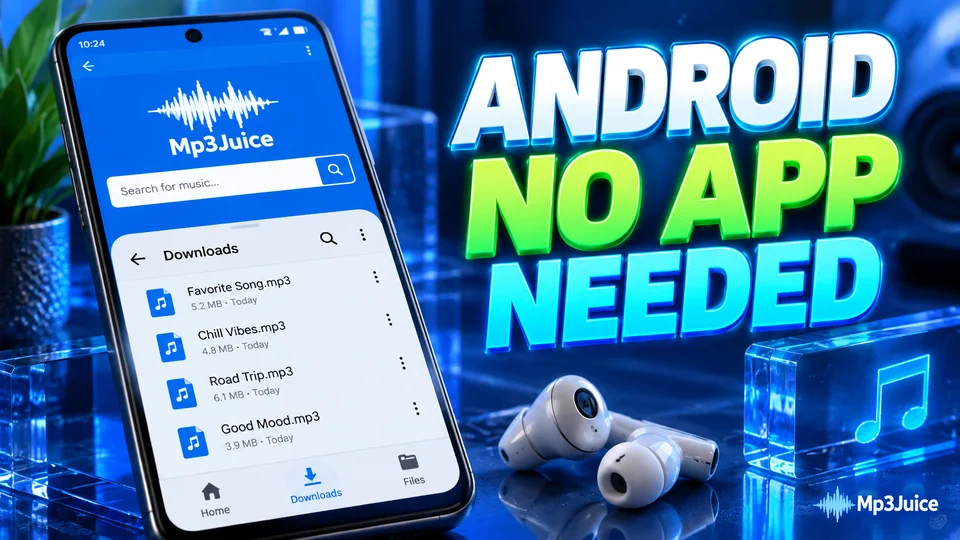
Android downloads usually end up in one place, but music apps do not always look there. The file is on the phone and the player shows an empty library. The fix is usually a folder move or one hidden file, not a factory reset.
Where the browser puts the file
Chrome and most Android browsers save downloads to Internal storage, then Download. On a Samsung phone the path looks like this in My Files: Internal storage, Download. On a Pixel or a Xiaomi device, open Files by Google and choose Downloads.
Files are sorted by date by default, so the track you just saved should be at the top. If you cannot see it, make sure the filter is set to All files and not Images or Videos.
Finding it on common phones
- Samsung. Open My Files, tap Categories, then Audio. Or open Internal storage and go into Download.
- Pixel and Motorola. Open Files by Google, then Downloads. The Audio category also lists local tracks.
- Xiaomi and Redmi. Open File Manager, then the Downloads category. Some themes hide internal storage behind a menu.
- OnePlus and Oppo. Open File Manager, then Downloads. The built in Music app may only scan the Music folder.
Why the music app does not see it
Modern Android uses scoped storage. An app cannot scan every folder on the phone unless it has been granted access. That protects your documents, but it also means a new file in Download may not appear in a player that only indexes Music.
The media scanner also runs on its own schedule. A file can take a minute or two to show up. Restarting the phone forces a fresh scan, but moving the file is more reliable.
Move the track to Music
- Open your file manager.
- Go into Download and long press the audio file.
- Choose Move or Cut.
- Go back to Internal storage and open Music.
- Tap Move here or Paste.
Android gives the Music folder priority when it builds the media index, so most players will pick up the track after the move. If the folder does not exist, create it with the same name and capitalisation.
The .nomedia file
A file named .nomedia tells Android to ignore a folder when it scans for media. Download managers and some apps create one to keep temporary files out of the gallery. If it lands in Download or Music, every song in that folder disappears from your player.
- Open the file manager settings and enable Show hidden files.
- Open Download and Music.
- Look for a file named exactly .nomedia and delete it.
- Wait about thirty seconds or restart the phone.
After a restart or a new SD card
If you use a microSD card, check that the player is allowed to read it. Android may ask for permission the first time. A card that was formatted on a computer can also be read only for some apps. Format it on the phone if you plan to store music there.
When the file is simply gone
Some cleaners and "phone boosters" delete the Download folder without asking. If the file disappeared after a cleanup, check the app's recycle bin or restore option. If there is none, the file has to be downloaded again. Keep important tracks in Music or on a card so a cleaner does not treat them as junk.
The short version
Look in Download first, then move the track to Music. If it still does not appear, find and remove .nomedia, wait for the scanner and check the player's storage permission. That covers almost every missing song on Android.
More guides
 Safety & Security
7 min read
A practical look at fake download buttons, notification traps and the checks that keep a browser based audio tool from turning into a problem.
Read the guide Audio Quality
8 min read
Why a 320kbps download from a 160kbps source is bigger without being better, and how to read a spectrogram without guessing.
Read the guide Troubleshooting
8 min read
The usual causes behind a network error, a silent file or a progress bar that never finishes, and what to try before you give up.
Read the guide